
Neko no Niwa / Enjoying it on your Home Screen
A little garden with a cat, on your iPhone Home Screen.
A moment of the garden every time you look at your phone.
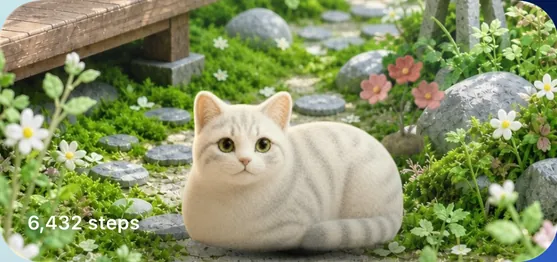
With the Neko no Niwa widget, you can put the garden scenery and today’s steps on your Home Screen.
There are two sizes: a small square and a wide one. Once your garden is set up in the app, try adding it to your Home Screen.
iPhone · iOS 18.0 or later. A widget for the Home Screen.
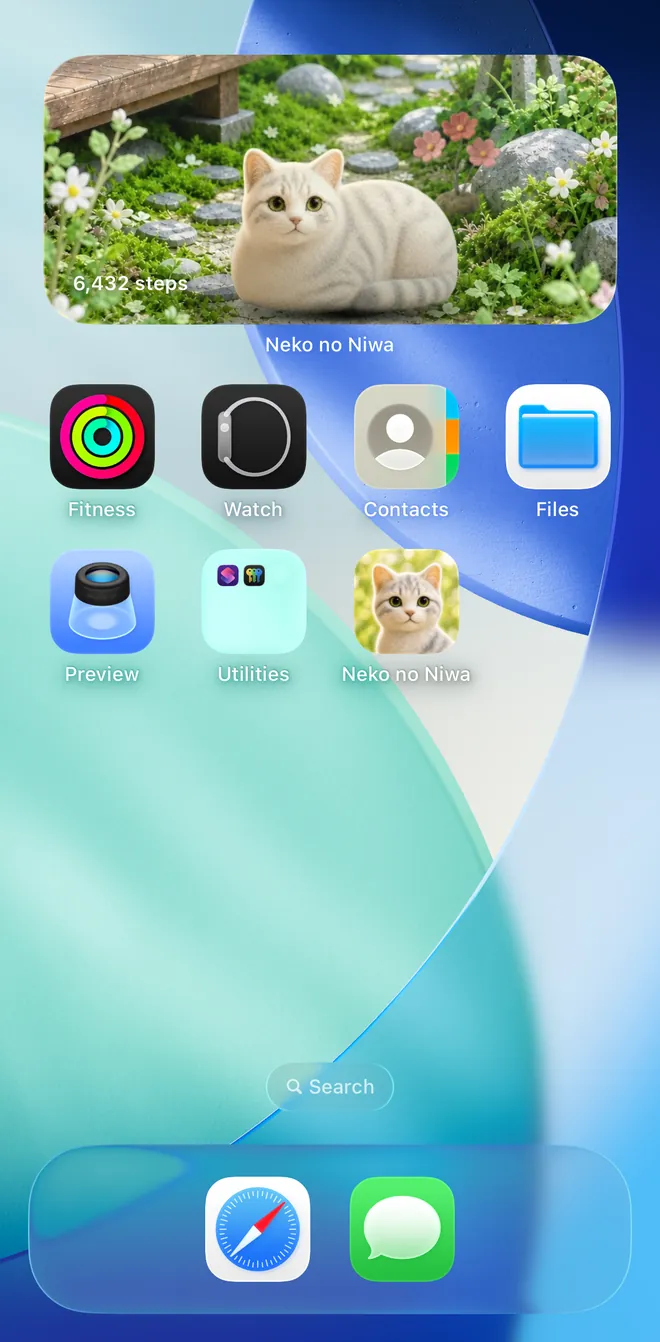
01 / Add it to your Home Screen
Four steps to put the cat widget in place.
Open Neko no Niwa and finish the initial setup
Download Neko no Niwa from the App Store and open the app once. To show your steps, allow it to read step counts from Health by following the guidance.
Touch and hold the Home Screen background
Go back to the Home Screen and touch and hold an empty area until the icons jiggle.
Open the list of widgets
Tap “Edit” at the top of the screen, then “Add Widget,” and look for “Neko no Niwa” in the list. Depending on your iOS version, you add it from the “+” in the top-left corner.
Choose a size and a place
Swipe left or right to choose the small or medium size, then tap “Add Widget.” Move it wherever you like and tap “Done” to finish.
You can also check the general steps in Apple’s guide to adding widgets.
02 / Sizes and what they show
A small touch, or a wide view.
Small · square
A compact moment of the garden, right next to your app icons.
Medium · wide
Enjoy the garden scenery across a wider space.
It shows the garden scenery and today’s steps. On days a cat comes by, its figure arrives too. Updates are managed by iOS, so the widget doesn’t always change at the same moment as the app.
03 / Spend time with your own cat
A cat welcomed from a photo joins the garden, too.
Enjoy the Home Screen scenery with the cats that visit the garden. You can also welcome a needle-felt style “My Cat” from a photo of your own cat.
You don’t need to buy a welcome to use the widget. Checking the candidates from your photo is free, and confirming the welcome is an in-app purchase.
04 / FAQ
If it doesn’t show up as expected.
Neko no Niwa doesn’t appear in the list
After installing, open the app once and finish the initial setup, then open the widget list again.
The garden and steps don’t change right away
The widget isn’t updated all the time. First open the app to check the garden and your steps, then go back to the Home Screen and wait a little. If steps don’t show in the app either, check the permission to read from Health.
Can I put it on the Lock Screen?
The Neko no Niwa widget supports the small and medium sizes on the Home Screen. Lock Screen widgets aren’t supported.
Is it a widget that shows my photo as it is?
Neko no Niwa shows the scenery of a garden where cats live. “My Cat” is a felt-style figure generated from your photo. It works differently from photo widgets that display the original photo as it is.
If this doesn’t solve it, please contact us with your iOS version and what you see.
A scene with a cat,
on your everyday Home Screen.
Free to download · In-app purchases available
See more of what Neko no Niwa can do →